In the era of digital transformation, signing and approving documents quickly and securely is indispensable for modern enterprises. Sea Sign is a mobile application developed using React, supporting document sign-off activities for the Odoo system through the Sign-off module. The application allows users to:
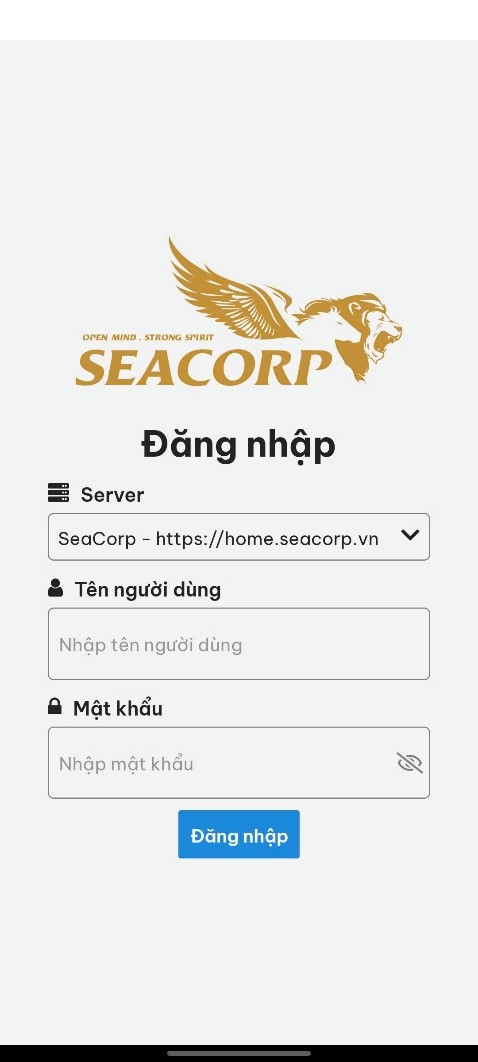
Log in
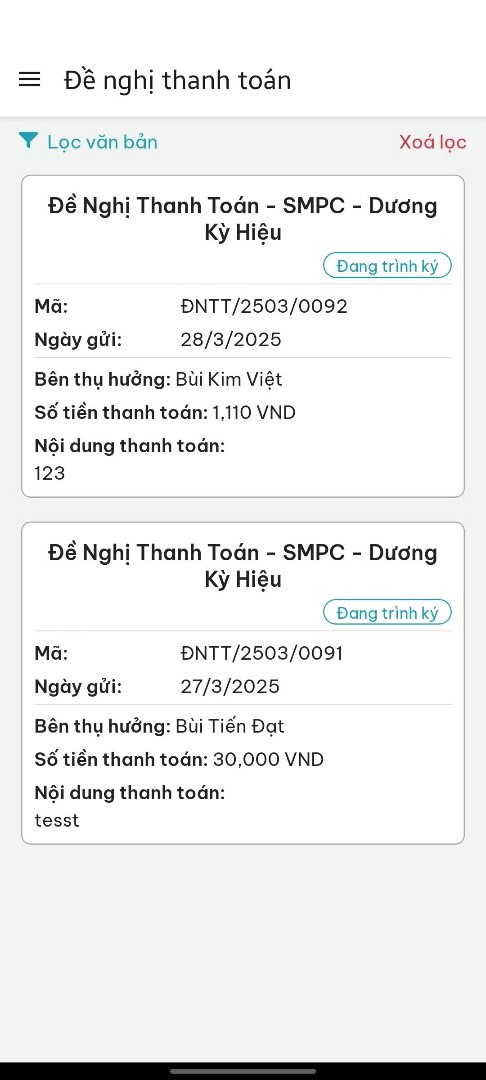
View the list of incoming documents
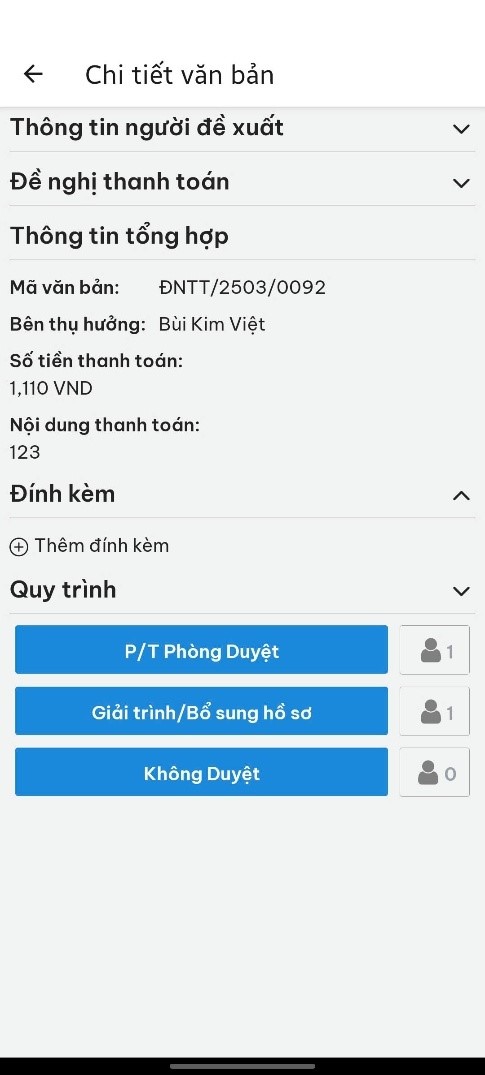
View detailed content and workflows of incoming documents
Filter and search for incoming documents by document type, document name, document code, status, and sent date.
Approve or reject documents, add comments, and add signatures directly on mobile devices.
Sea Sign is designed with a simple, user-friendly interface optimized for the mobile experience, helping users handle work quickly anytime, anywhere. The following article will guide you through the installation and usage of the Sea Sign application in a simple and easy-to-understand manner.
II. Installation Guide for Sea Sign Application
1. Guide to Downloading Expo Go
You can watch the detailed installation guide through the following videos:
Step 1: Go to the App Store (iOS) or Google Play (Android), search for Expo Go and download it (as guided in Section 1).).
Step 2: Scan the QR code to open the Sea Sign application:
With iOS: Open the camera to scan the QR code → select "Open with Expo Go".
With Android: Open the Expo Go app → select "Scan QR code" → scan the code.
3. Installing via APK File (Android Only)
If you are provided with a .apk file:
Download the file to your phone.
Go to "My Files", find and tap on that file to install.
Please grant permission to install applications from unknown sources if requested.
III. Guide to Using Sea Sign Application
1. Logging into the System
Select server as Home SeaCorp or Dannygreen Retail (other servers will be updated later)..
Enter Username and Password identical to your personnel evaluation account on the web.
2. Exploring the Main Screen
Here, you will see a list of văn bản đang chờ duyệt or processed documents. Select any document to start viewing or signing off.
3. Document List
You can filter documents by:
Document name/code
Status:
Awaiting Approval: Documents waiting for your signature.
In Progress (Signing off)Documents passing through you in the workflow.
Completed: Documents that have finished the sign-off process.
Sent date
After selection, press Apply to filter. To clear the filter, press Clear Filter.
When tapping on "Filter Documents", a selection panel will appear
4. Document Content
The details of a document usually include the following sections:
Ø 4.1. Detailed Information
Includes the proposer and the main content of the document. You can tap the arrow to expand the information.
Ø 4.2. Summary Information
Displays a summary if the document is long.
Ø 4.3. Attaching Files
You can:
View attached files by tapping the file name.
Add attachments: tap "Add Attachment" → select a file from your device → enter a description → save.
Guide to opening attached files(Video guide: Watch here .)
AndroidTap to open directly using any app.
IOS: Tap the file name → select "Notes" → save → open Notes to read the file.
To add an attachment, tap the "Add Attachment" button, select 1 file from your phone, then enter a description if any, and press save.
Note:
Only 1 attached file can be selected at a time.
Each file must not exceed 25 MB.
Ø 4.4. Processing Workflow
Displays the execution process of the document.
Tap on the document you want to view the workflow for.
Tap the arrow to expand or collapse.
A workflow consists of multiple stages; each stage includes: status, the employee receiving the document, execution, the employee receiving execution, comments, and confirmation date.
Ø 4.5. Actions
Each document may or may not have actions you can perform (e.g., approve, reject...). Next to each action is a button displaying the number of people who will receive the document after you perform that action.
To view the recipient list after performing an action, tap the buttons aligned with that action. For gray buttons, you can only view the recipient list; for blue buttons, you can modify this recipient list.
After modifying the recipient list, press save.
Note: Note: Each action has a fixed recipient list; if you want to add people outside this list, you need to contact support. Each action must have at least one recipient when adding people, and when there is only 1 recipient, that person cannot be deleted.
Approving documents: Tap the action to be performed to approve the document. A notification panel will appear.
IV. Document Sign-Off
After reviewing the content, you just need to tap the action to be performed, and the system will display an action confirmation window. Press Send to complete the sign-off process.
V. Conclusion
The Sea Sign application is an effective solution helping you process documents quickly at work, even when you are not present at the office. With just a few simple installation steps and operations, you can approve documents anytime, anywhere.
Install and experience Sea Sign today to enhance your work efficiency!